Cashier (folding a pair of pants): “How are you today?”
Me (cannot resist): “Fantastic! I installed Raycast last week, nuked Mission Control, disabled every track-pad gesture, and now everything on my Mac is one keystroke away. Even my browser speaks Vim!” Cashier: 🤨
Me (internal monologue): Right… maybe I should write a blog post instead.
So here’s my half-showcase, half-how-to. You’ll enjoy this if you’re a fellow optimization geek who wants macOS to be as efficient as possible with as few keyboard shortcuts and mouse usage as possible.
TL;DR Setup #
| Area | Tool |
|---|---|
| Launcher | Raycast |
| Browsing | Zen/Arc |
| Browsing plugin | SurfingKeys (Vim motions on browser) |
| I won’t even attempt here to document my shell, Dev, and homelab environment setup here. That may require a blog post series by itself. But here I’m sharing some tips and tricks I’ve found to be immensely useful for my browser and Raycast. |
Purpose of my setup #
Problem I’m trying to solve #
Maybe it’s just me, but using ⌘+Tab to switch apps, or even using finger gestures on the trackpad for Launchpad, Mission control, or selecting open apps, sometimes breaks my focus. It’s kind of the phenomenon we have at our phones:
- We need to check our email. So we:
- Open our phone,
- Open up a random notification we missed,
- Doom scroll a little bit,
- Check LinkedIn,
- Remember we opened the phone to check our email in the first place…
Simple purpose #
So this setup achieves 2 purposes:
- Being easy to setup,
- Help me focus on whatever task I have at hand without thinking much of anything else
First Principles #
The principles I follow for myself here are:
- Keyboard first, mouse/trackpad later,
- Use the least amount of apps as possible,
- 80/20: 80% of my work is concentrated on 20% of apps, sites, folders. (Of course new projects need a bit more than my habitual computer usage, but the 20% of apps still holds true), so it makes sense to automate those, by means of Keybindings or commands.
Indispensable App 1: Raycast #
If you’ve never heard of Raycast, this Youtube video explains it pretty well (Along with how to install it):
On the surface, it is a replacement of Spotlight on Mac, but it’s way more. It is a launcher, and a central control hub for doing all kinds of operations, including MCP support, AI chats, and even performing some control over our machine. By the way, very recently they introduced it on Windows, which seems very promising.
When using Raycast, I think of it as a layered approach:
- Open stuff: Apps, or “options” inside apps (Like a specific folder on Finder, Browser Bookmarks, Read it later apps, etc.)
- Control stuff: (Do operations on apps, like play/pause on Spotify, or opening a new browser tab, or even open specific directories in our terminal)
- AI (Of course): Commands, quick chat sessions, even MCP servers.
- Automation via “Snippets” (kind of like environment variables), scripts, and other useful things.
Raycast becomes our launch control for pretty much anything we can think of. It took a couple of hours for me to get the grasp of it, do further customizations and building some muscle memory, and this turned out to be an actual time investment. I now have zero mental cost when using my computer; everything is right there, on 1 keybind or command away. I truly feel Raycast has made me use my computer with zero friction, and enhanced how I use it (At least on MacOS.. for now).
Now, the fun part: Actual usage of Raycast
Keymappings #
First things first: Set up hyper key
- It is a replacement of the Caps Lock which is pretty useless nowadays. This lets us have this special “Hyper key” to assign keybindings, instead of overriding our ⌘+_ usual shortcuts. I’ll explain why this is awesome in this section.
Example ideas for using Hyper Key (I’ll just use ✨ to reference it from now on), mixed with some other useful keymaps:
| Command | Usage |
|---|---|
✨+z |
Open/switch to Zen browser |
✨+s |
Spotify |
✨+w |
Terminal |
✨+n |
Notion |
✨+F |
Finder |
✨+. |
Play/Pause Spotify |
✨+' |
New Raycast Note (I don’t use Apple notes) |
⇧ + ⌘ + C |
screenshot app (Makes sense; it’s kind of a “special copy”) |
⇧ + ⌘ + V |
Clipboard history (Also makes sense; it’s a “special paste”) |
| Those are just some ideas. There may be dozens or hundreds of possible bindings depending on one’s workflow and use cases. |
AI Usage (Of course):
| Command | Usage |
|---|---|
✨+g |
Open ChatGPT (Desktop app) |
✨+F |
Open Raycast’s AI Chat |
✨+¿ |
“Ask Webpage” (It automatically “grabs” our current browser’s tab, and we can ask Raycast AI questions about it - Summarization, finding a key point, explaning things further, etc.) |
| Window management: |
| Command | Usage |
|---|---|
✨ + ←/→ |
Set window to left half or right |
✨+ ↑/↓ |
Full screen current app, or center current app (No need to minimize right? We have ⌘+h for that anyways) |
Raycast AI #
About this “Ask webpage” command, we can just open Raycast with ⌘ + space, type “ask browser” and type your question. I’m using Raycast Extension for Zen browser
but there are a lot more. I found the Google Chrome one and Arc to be the most useful ones, but Zen browser is still in Beta, so I think this extension will improve over time.
By the way, to install an extension, we just open raycast (⌘+space), search for “Store”, hit Enter, and search for about anything we can think of. In this case, Zen browser. Search and Install in 1 second.
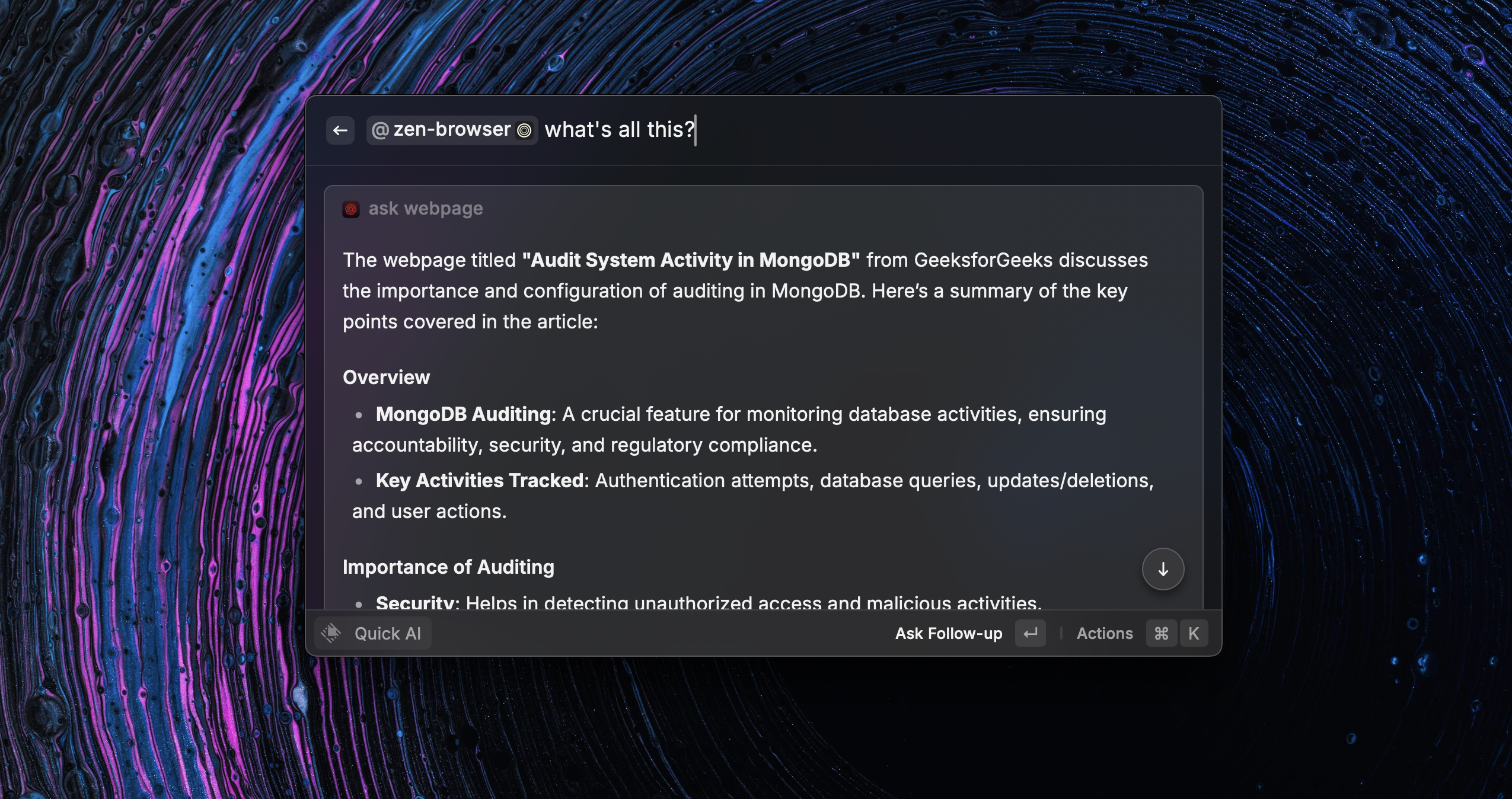
Raycast has built-in summarization and other interesting prompts, but its usage may depend on your specific purpose.
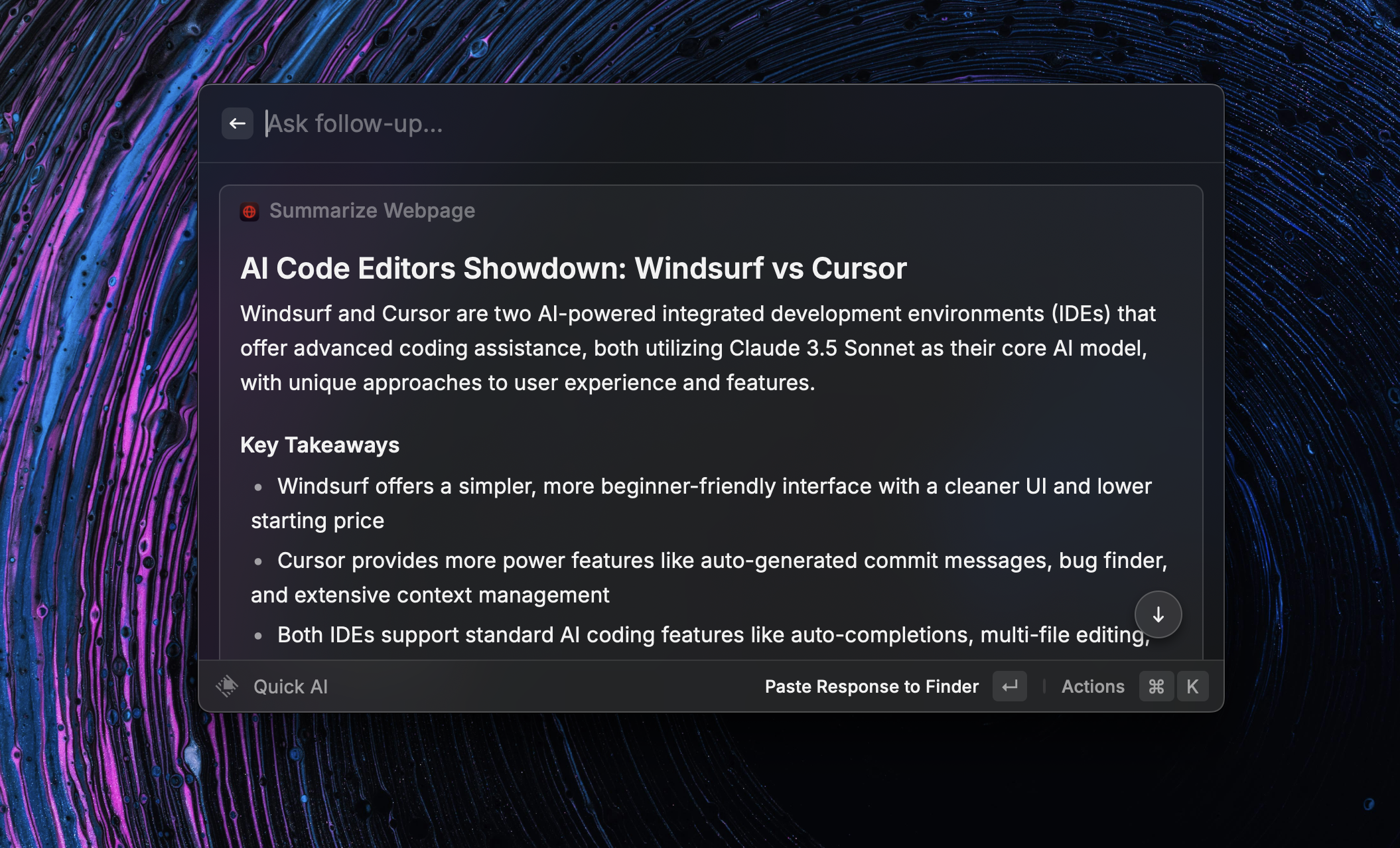
For example, Summarize webpage is a very handy AI Command:
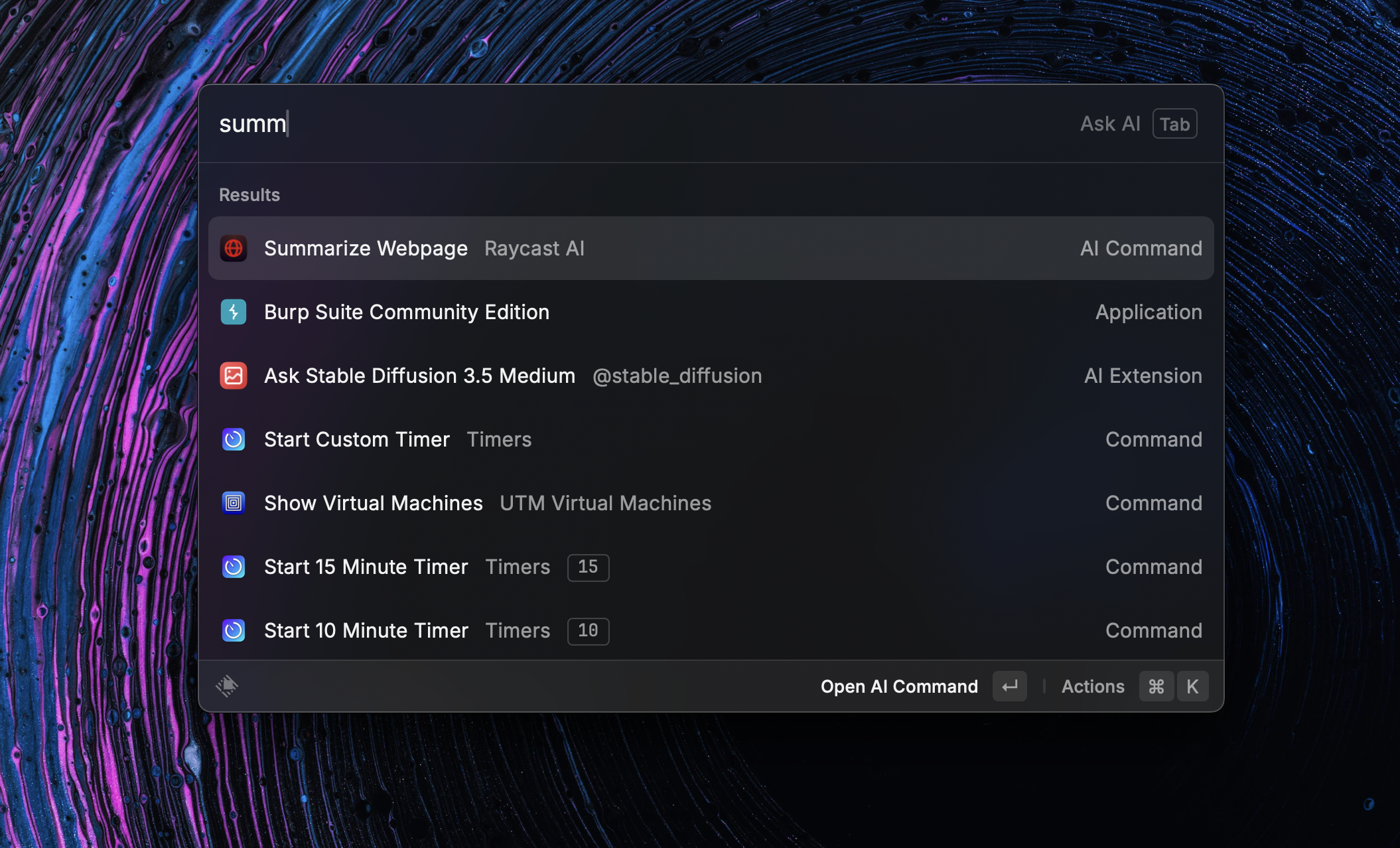
It comes “packed” with a summarization prompt, and it “grabs” our main Browser’s current tab website:
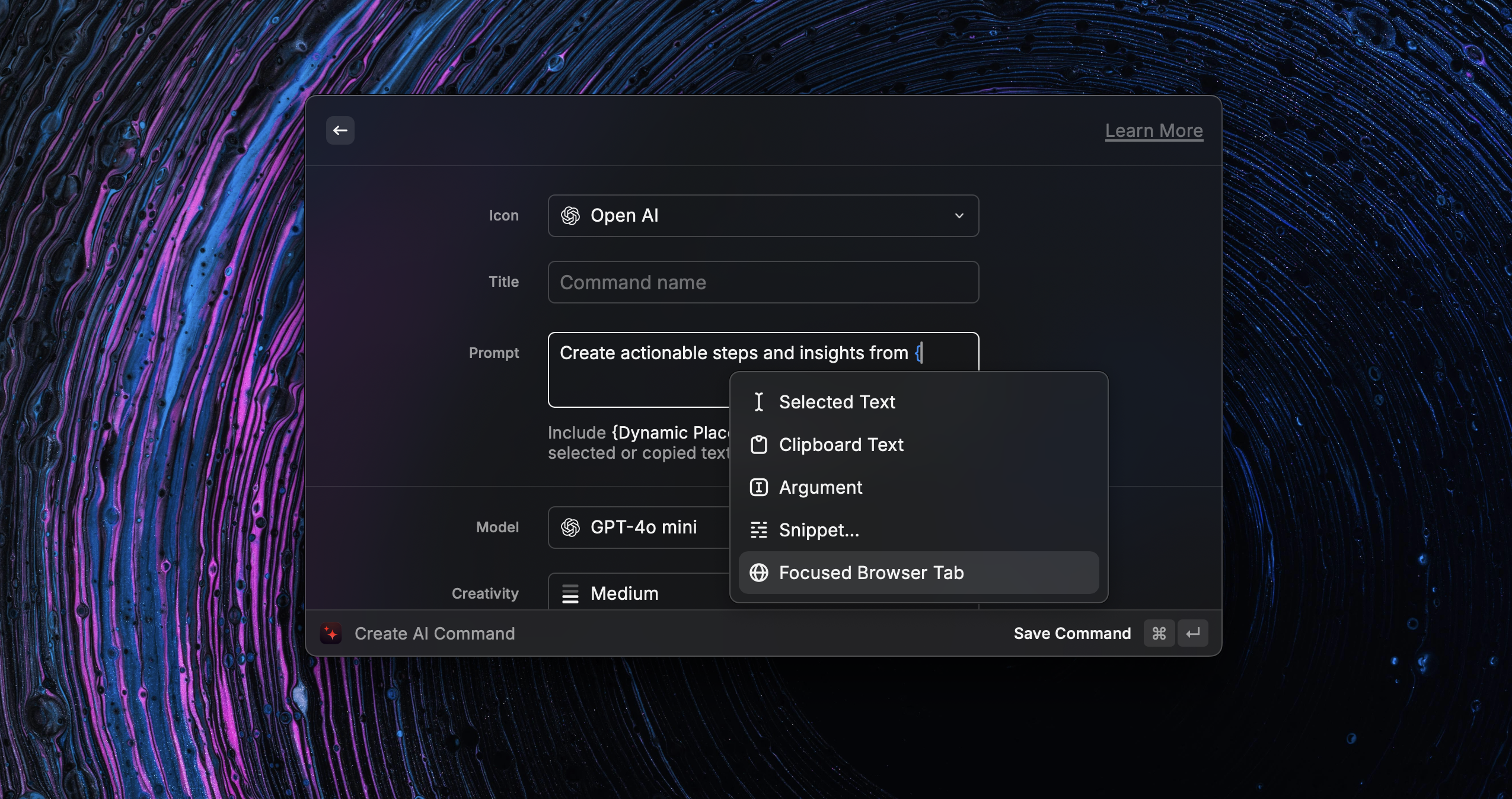
There are people that even create custom AI Commands (Prompts), which are basically prompts, that can be “chained” to different elements, such as our clipboard, our browser’s current webpage. I haven’t done that heavily, but maybe it’d be interesting to import our prompt libraries to Raycast so we can use them in 1 keystroke against a specific website we’re in (ehmm.. Skimming through Documentation would be awesome with this).
Example creation of an AI Command:
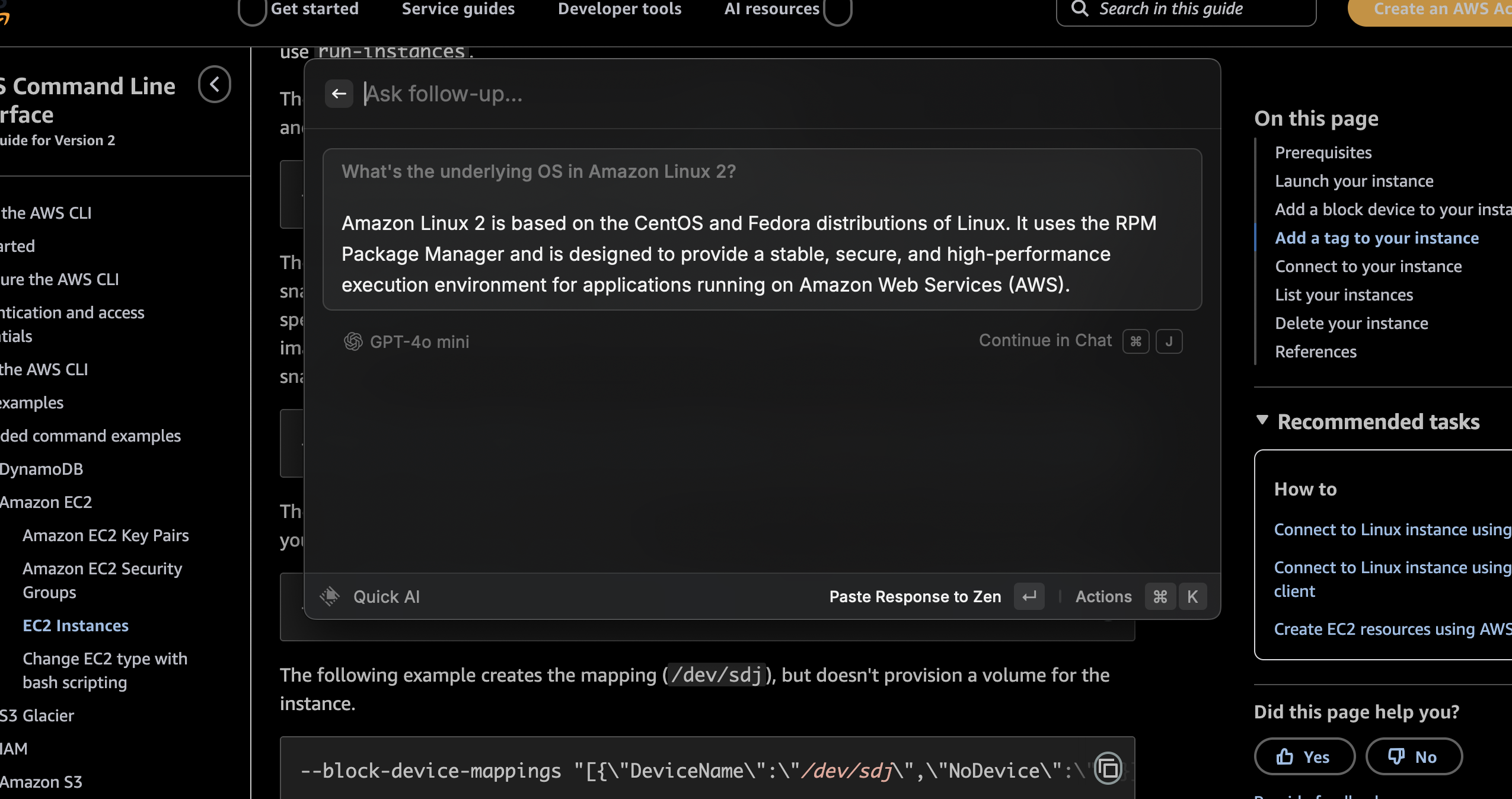
We can also randomly raise questions to their AI Chatbot on the fly, without even leaving our current app, and this Q&As will be temporary (Which I love. I don’t like having a million random chats in ChatGPT/Gemini/Claude burying the important WIP ones).
Example: popping up a new quick AI chat while working on something else, just there. Wherever we happen to be working on, just ⌘ + space, Tab and ask for something:
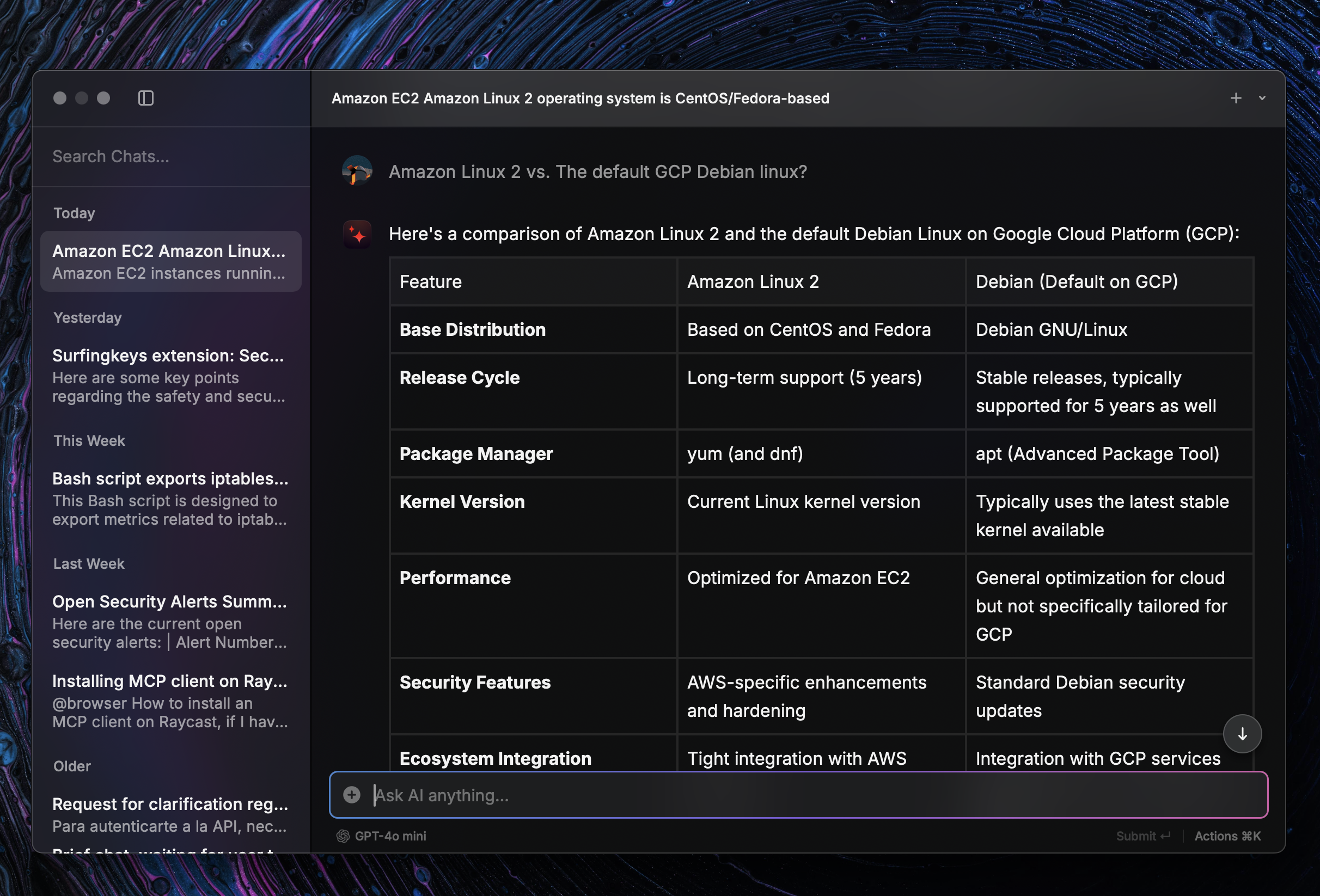
On any given entry, we can just ⌘ + J and enter the Raycast’s AI Chatbot Desktop App to continue the conversation if we want:
Other random Raycast use cases #
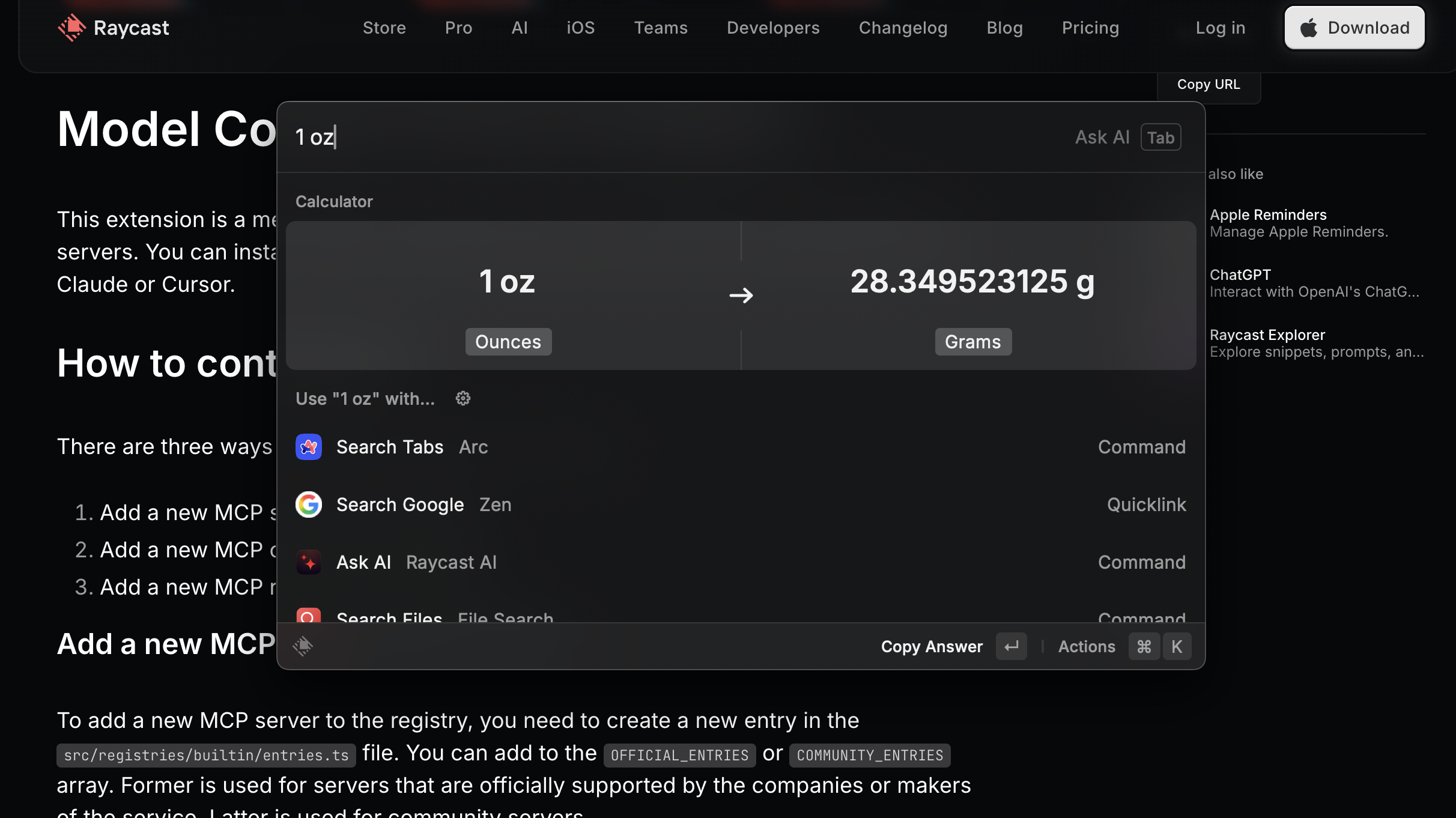
At first I thought unit conversions in Raycast were just a gimmick, but it turns out to be a pretty powerful tool
- Mathematical operations (i.e.
pi * (14.5)^2for calculating a circle’s area,126% of 23), - Currency conversions (just type
12eurand it’ll give you a conversion to your local currency, unless you say12 eur to usd) - hexadecimal to decimal (Just type
0x41) - Date calculations (
1400 days from now) - Unit conversions (
100 knots to kph,32Cfor °C to °F conversions,120GB to kilobytes)
I can’t possibly cover everything on this post but I think it’s enough to showcase its power, and spark some ideas on how it can be used.