In this post, I go about creating an AWS EC2 instance purely using the AWS CLI, and baking in Tailscale into it so we can privately access it after it’s booted, then burn our bridges and delete any inbound security groups (We lock it down) so we have full private access through Tailscale’s Wireguard tunnels.
I’ve been thinking of doing this for a while, because I sometimes want a remote testing environment and logging into AWS, spinning up an EC2, managing AWS SSH keys, installing Tailscale, etc. Is exactly what I want to eliminate in this “procedure”.
[!NOTE] I also want to make this quick and easy, straight to the point, but I also added supporting documentation directly on almost every step so you can reference it and tweak the commands to fit your needs.
Considerations #
- This post is just a lab experiment, that might or might not be a good idea depending on your specific needs
- We’re spinning up an on-demand, default 8GB Root Volume EC2 instance,
- We’re attaching a Security Group with TCP 22 (SSH) inbound, just in case something goes wrong, and then detaching it, essentially locking down our instance,
- We’re ONLY using Tailscale to access the EC2 instance in the end.
Requirements #
- A Tailscale Authentication key (Preferably Ephemeral, and/or VERY short lived),
- Our host computer should be already authenticated to Tailscale
- AWS CLI installed and already authenticated with necessary IAM permissions to:
- Create/Modify Security Groups,
- Create/Modify EC2 instances
- Or do VPC modifications in case we need to create Subnets and VPCs for this environment.
Set up Tailscale #
- Log into Tailscale
- Get a Tailscale Auth key, which we’ll add to our user data
[!NOTE] The only safe way to pass in our Tailscale auth keys to our EC2 instance is by using AWS’ system parameter store / Secret Manager, instead of baking in any credentials into EC2’s user data. However, we can make our Tailscale key ephemeral, meaning it will only be useful once. We also have them expire after X days. So here, we have a reasonable security balance.
Create our AWS EC2 User Data file 1
user_data.txt:
#!/bin/bash
set -eux

curl -fsSL https://tailscale.com/install.sh | sh
tailscale up --authkey tskey-(...) --ssh
Prepare our AWS Environment #
If needed, set temporary env vars:
export AWS_PROFILE='my-user'
export AWS_REGION='us-west-1'
aws ec2 describe-vpcs \
  --query 'Vpcs[*].[VpcId,Tags[?Key==`Name`]|[0].Value]' \
  --output table
I’m using table output for ease of use but we could maybe use JSON and JQ command
Grab our desired VPC ID, and then run:
aws ec2 describe-subnets \
  --filters Name=vpc-id,Values=$VPC_ID \
  --query 'Subnets[*].[SubnetId,AvailabilityZone,Tags[?Key==`Name`]|[0].Value]' \
  --output table
Create Security Group for p.22 inbound 2:
aws ec2 create-security-group --group-name my-sg-id --description "SSH port 22" --vpc-id $VPC_ID
Example: Assign inbound port 22 (Default SSH) 3
aws ec2 authorize-security-group-ingress --group-id $SG_ID --protocol tcp --port 22 --cidr "0.0.0.0/0"
Get AMI ID. In this case, it’s Amazon Linux 2, but we can get an AMI ID for any other OS we need in the AWS Marketplace:
aws ssm get-parameter \
  --name /aws/service/ami-amazon-linux-latest/al2023-ami-kernel-6.1-x86_64 \
  --query 'Parameter.Value' \
  --output text
Choosing an AMI ID #
For example, we can search for Debian 12, AMD 64 with the following command. Its output is a bit clunky but useful enough: 4
aws ec2 describe-images \
  --owners 136693071363 \
  --filters 'Name=name,Values=debian-12-amd64-*' \
            'Name=root-device-type,Values=ebs' \
            'Name=virtualization-type,Values=hvm' --output table
Run EC2 instance 5:
[!NOTE] 1. We’re deliberately not passing any SSH Key to the instance, because we’ll use Tailscale to authenticate.
Note that we’re not assigning any logical volume either, so it’ll use the default root volume of 8 GB. 6
aws ec2 run-instances --image-id $AMI_ID --count 1 --instance-type t2.micro --security-group-ids $SG_ID --subnet-id $SUBNET_ID --user-data file://user_data.txt
Query Instances directly (Table mode, all instances):
aws ec2 describe-instance-status \
  --include-all-instances \
  --query 'InstanceStatuses[*].[InstanceId,InstanceState.Name,LaunchTime,InstanceStatus.Status]' \
  --output table
Tailscale SSH! #
Our new server’s sshd is indeed listening on port 22. Tailscale injects its own SSH handler in front, so the first connection we make tunneled through Tailscale will be authenticated via TS. 7
We can now:
ssh ec2-user@tailscale-ip
Output:
ssh ec2-user@100.x.x.x
The authenticity of host '100.x.x.x (100.x.x.x)' can't be established.
ED25519 key fingerprint is SHA256:SRrpuFQjd/d3taOtvR+UgYti+r0qeBkJ2NbvLX5zhrtfc.
This key is not known by any other names.
Are you sure you want to continue connecting (yes/no/[fingerprint])? yes
Warning: Permanently added '100.x.x.x' (ED25519) to the list of known hosts.
# Tailscale SSH requires an additional check.
# To authenticate, visit: https://login.tailscale.com/a/l1f0ff06833812p
Using this URL, or the browser tab opened by our terminal, and we’re in!
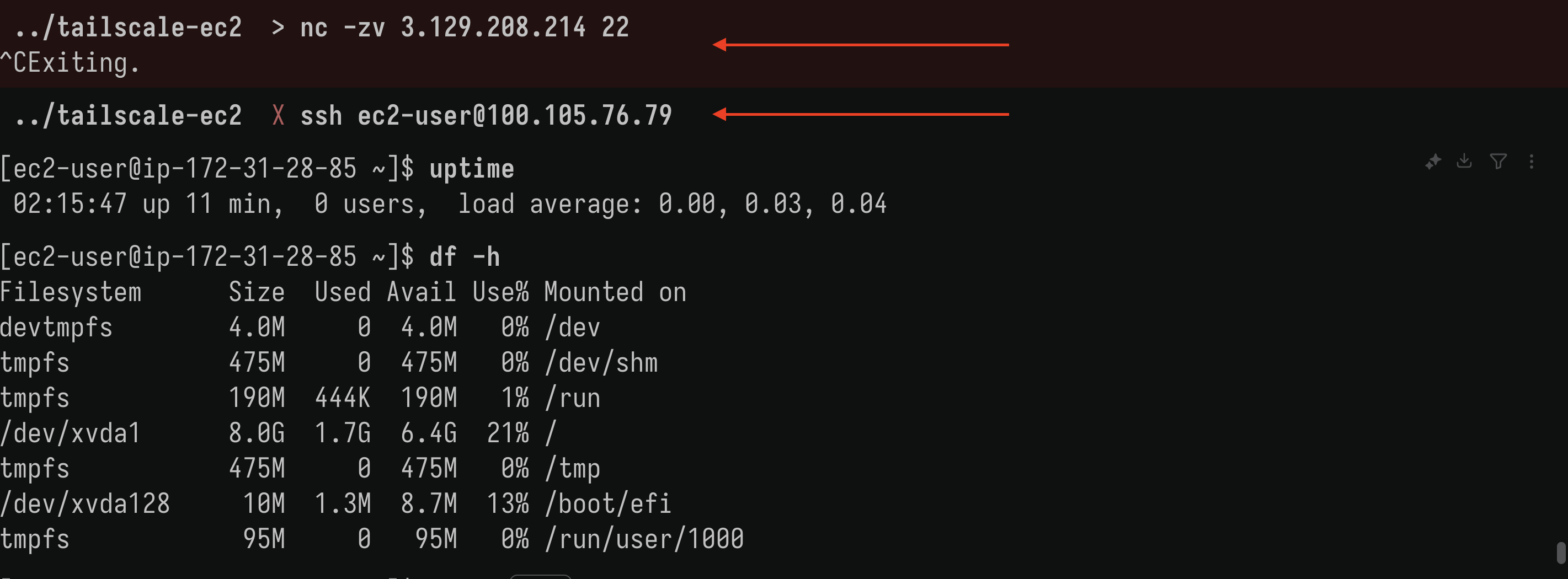
We can even detach our previously created SG and keep using Tailscale:
- I tested connection with Netcat, confirming our SG is blocking connection,
- Then I connected directly “inside” Tailnet, and since I was already authenticated, I’m in directly.
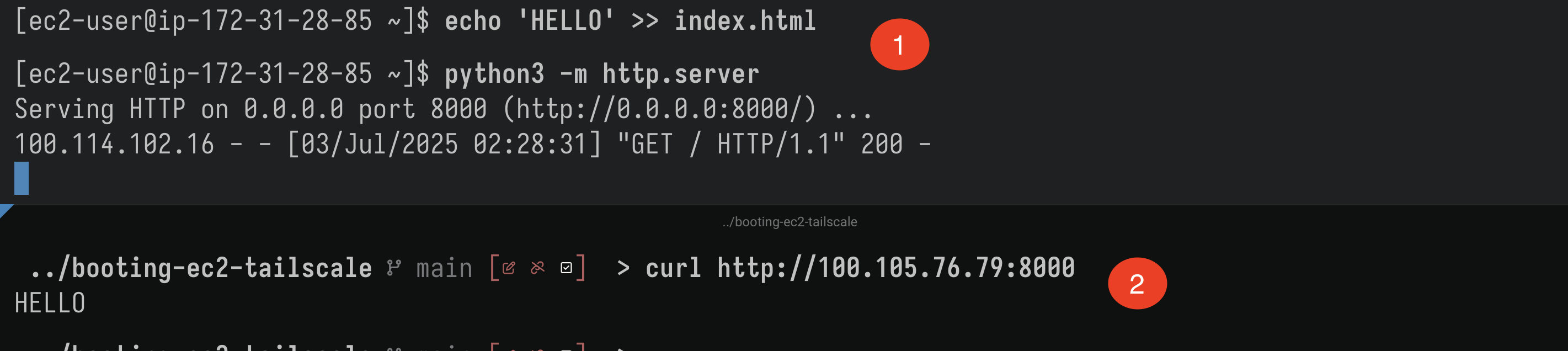
Of course, we have full access to this VM (Any port):
- As an example, I’m spinning up a quick test HTTP server with Python’s
http.servermodule, - accessing it successfully from our laptop inside Tailscale
Conclusions #
This methods allow us for a lot of flexibility when running quick tests (Or even integrating this commands into larger automation patterns)
References: #
-
https://docs.aws.amazon.com/cli/latest/reference/ec2/create-security-group.html#examples ↩︎
-
https://docs.aws.amazon.com/cli/latest/reference/ec2/authorize-security-group-ingress.html#examples ↩︎
-
https://docs.aws.amazon.com/AWSEC2/latest/UserGuide/finding-an-ami.html ↩︎
-
https://docs.aws.amazon.com/cli/latest/reference/ec2/run-instances.html#examples ↩︎
-
https://docs.aws.amazon.com/cli/latest/reference/ec2/run-instances.html#examples ↩︎
-
https://tailscale.com/kb/1193/tailscale-ssh?q=ssh#advertise-ssh-on-the-host ↩︎