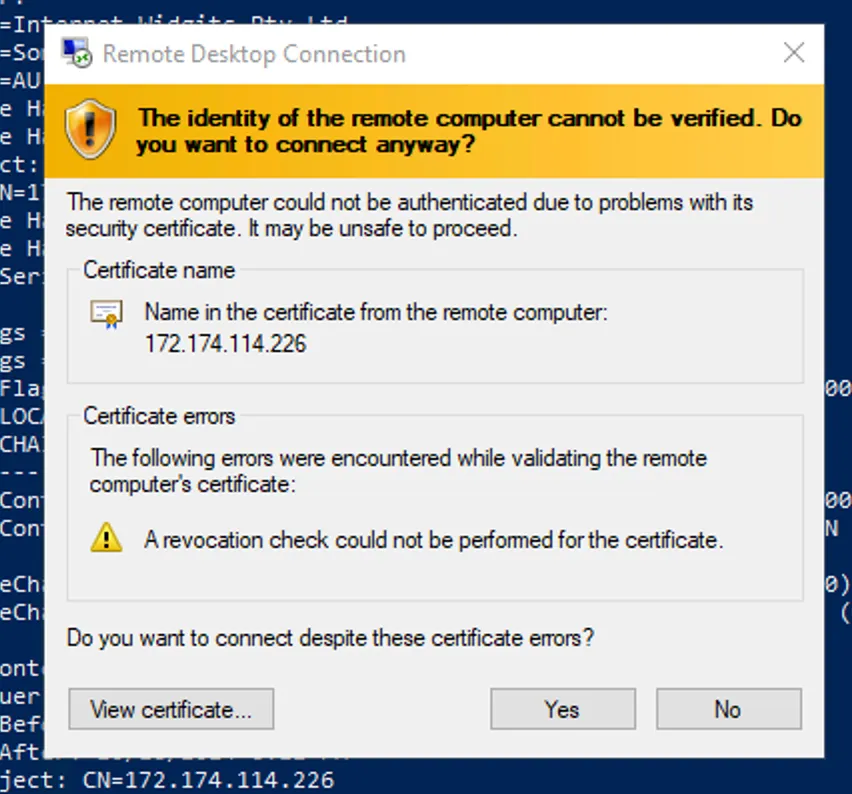
The process of setting up TLS in Microsoft Windows Remote Desktop Services. No certificate verification Server or Revocation lists are taken into account.
Important considerations #
- Windows Server needs to have a static IP - Else, we’d need to renew, request and install new certificates everytime.
- This doesn’t take into account Active Directory Certificate Services
- This method does not take into account the verification server (Revocation list) either.
- Test PoC Server: Windows (Windows Server 2016 Datacenter)
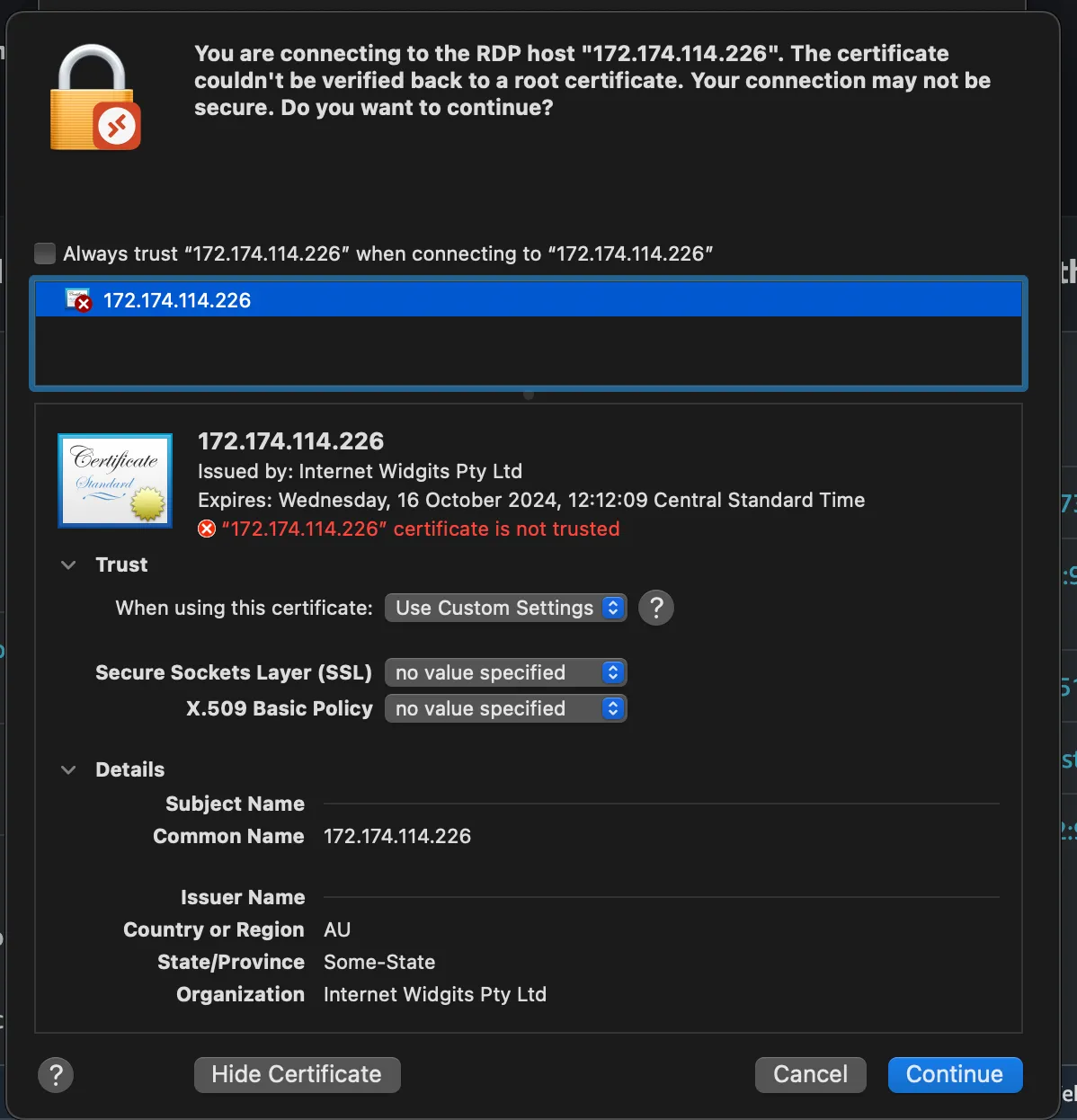
1. Cert Authority Generation #
- CA Generation:
# Generate CA Priv Key: --PASSWORD PROTECTED--
openssl genrsa -aes256 -out ca-key.pem 4096

# Generate Public CA Key
openssl req -new -x509 -sha256 -days 365 -key ca-key.pem -out ca.pem

################################################################################################

# Inspect Pub Cert's content:
openssl x509 -in ca.pem -text
openssl x509 -in ca.pem -purpose -noout -text
- Cert Generation:
openssl genrsa -out cert-key.pem 4096

# Cert signing request:
openssl req -new -sha256 -subj "/CN=yourcn" -key cert-key.pem -out cert.csr

# Extfile with the altname(s):
	# Originally we'd create a cert with a DNS name:
~~echo "subjectAltName=DNS:your-dns.record,IP:257.10.10.1" >> extfile.cnf~~
	# But this time we're only using an IP address:
echo "subjectAltName=IP:257.10.10.1" >> extfile.cnf

# Create CERTIFICATE:
openssl x509 -req -sha256 -days 365 -in cert.csr -CA ca.pem -CAkey ca-key.pem -out cert.pem -extfile extfile.cnf -CAcreateserial

# PFX conversion
openssl pkcs12 -export -out mysite.pfx -inkey cert-key.pem -in cert.pem

# Convert to B64:
base64 mysite.pfx > pfx-cert.base64
2. CA Installation on RDP Server #
# BASE64 -> PFX:
$base64Content = Get-Content  C:\PATH\certpfxB64.txt
$decodedBytes = [System.Convert]::FromBase64String($base64Content)
Set-Content -Path C:\PATH\new.pfx -Value $decodedBytes -Encoding Byte

# Verify PFX is valid:
Get-PfxCertificate -FilePath .\new.pfx

# Install ce®tificate:
certutil.exe -p "<PASSWORD>" -importPFX C:\PATH\certificate.pfx noExport

# Export thumbprint of the certificate to a variable ($tp)
$tp = (ls Cert:\LocalMachine\my | WHERE {$_.Subject -match "<IP ADDRESS> ó Identificador a ser buscado" } | Select -First 1).Thumbprint
# Verify the variable is as expected:
echo $tp

# Using WMIC to add it and specify the SSL cert to be used by service (RDP or Terminal Services):
& wmic /namespace:\\root\CIMV2\TerminalServices PATH Win32_TSGeneralSetting Set SSLCertificateSHA1Hash="$tp"

# No reboot required
3. Windows Client Certificate installation #
# Install cert:
certutil -addstore root C:\PATH\ca.pem
# or:
import-certificate -filepath "C:\ca.pem" -certstorelocation Cert:\LocalMachine\Root
TESTS #